
When a signer uses the simple electronic signature (the option with biometric verification), Mifiel runs an automated identity check on the photos they capture during signing. If that check detects something that should be confirmed by a person, the signature is held for your manual review instead of completing automatically. The document cannot be finalized until you — the manager who requested the signatures — review the evidence and decide how to proceed.
Why might a signature be flagged for review?
Most signatures are verified automatically and never need this step. A signature is flagged only when the automated check finds a possible inconsistency in the identity evidence — for example, signs that the person may have:
- photographed an ID belonging to someone else, or
- used a copy of their ID (a printout or a photo of a screen) instead of the original physical document.
Poor lighting or low photo quality can also prevent a confident match. A flag does not mean fraud occurred — only that the evidence needs a person to confirm it. (We keep the exact criteria internal so the check stays effective.)
How will I know a signature needs my review?
You'll be notified in a few ways:
-
You'll receive an email letting you know that one or more signatures require your review.
-
On your management dashboard, an alert at the top of the screen tells you that one or more documents require review, and a warning icon points you to the specific document and signer involved ("This signature requires your review").
-
In the document's details, a banner appears ("There are identity-verification photos that require your review"), and the flagged signer is marked "Requires your review."
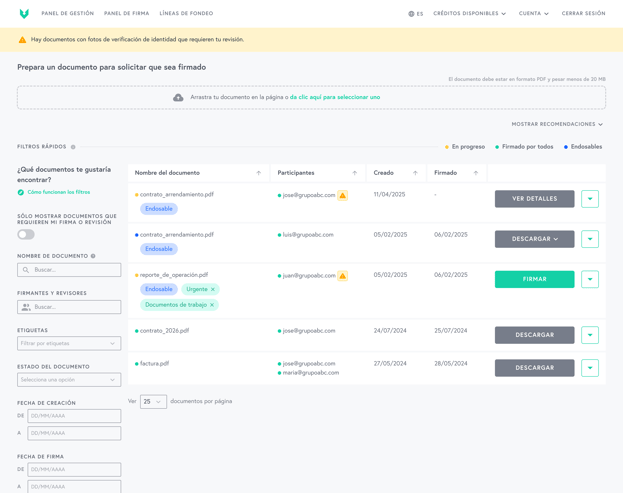
How to review and resolve a flagged signature
- Open the document and go to its details, under the Participants tab.
- Find the flagged signer and click Start review.
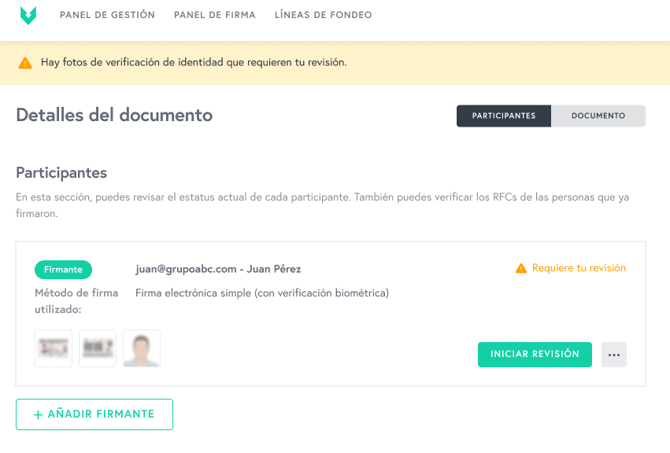
- A window summarizes why the signature was flagged. Click Download to get the photos the signer captured (face and ID) and review them carefully — confirm that the face matches the ID and that the ID appears to be an original, physical document.
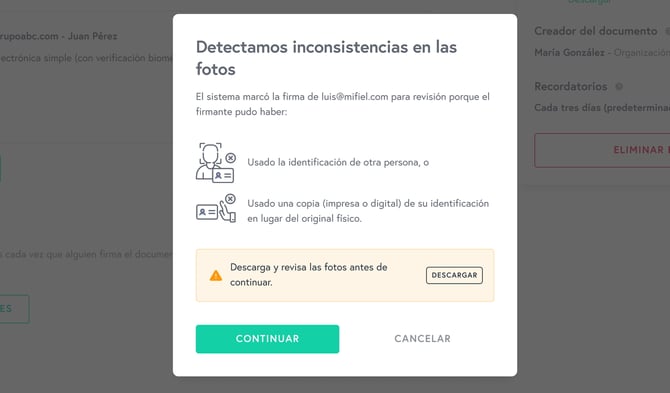
- Click Continue once you've reviewed the photos.
- Choose how you'd like to proceed (see the options below) and click Confirm.
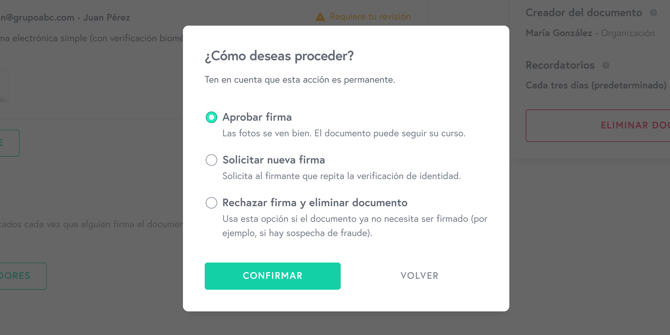
Note: this decision is permanent, so always download and review the photos before confirming.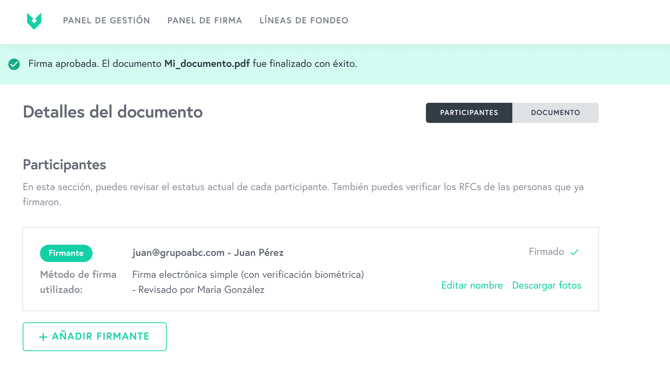
What are my options?
-
Approve the signature. Choose this when the photos look correct. The signature is accepted and the document continues its normal course; once everyone has signed, it's finalized. The document then records that the signature was reviewed by you, and the photos remain available to download.
-
Request a new signature. Choose this when the evidence isn't clear enough to approve. Mifiel emails the signer asking them to verify their identity and sign again. The signer returns to a Pending status and the document stays in progress until they re-sign.
-
Reject the signature and delete the document. Choose this when the document no longer needs to be signed — for example, if you suspect fraud. This rejects the signature and permanently deletes the document.
If you're unsure, requesting a new signature is the safer choice over approving — it gives the signer a chance to provide clearer evidence without discarding the document.